Someone on your team is leaving. Maybe it’s a happy goodbye with cake and a farewell card, maybe it’s an awkward one nobody wants to talk about. Either way, there’s a quiet risk hiding behind the handshake: that person still knows the passwords, still has the Instagram login on their phone, and still gets every email sent to the team inbox.
In big companies, IT handles this with a ticket and a script. In a five- or fifteen-person business, it usually falls to the owner, on a busy Friday, from memory. And memory is exactly what fails. Months later you discover a former designer still in your Canva team, or an old salesperson still logging into your CRM from home.
A simple offboarding checklist fixes that. It protects your data, keeps your customers’ information safe, and, honestly, it’s kinder to the person leaving too, because nobody has to wonder later who changed what.
The Offboarding Checklist at a Glance
- Before the last day: list every account and device they use, plan the handover, and decide who takes over what.
- On the last day: suspend their work accounts, change shared passwords, remove them from apps and social pages, collect devices, and cut payment access.
- After they leave: move their files and email to a new owner, cancel unused licences, check nothing was missed, and close out pay and paperwork.
Step 1: Before the Last Day
Good offboarding starts the moment you know someone is leaving, not on their final afternoon. A week or two of notice is plenty of time if you use it well.
Make a List of Everything They Can Get Into
Sit down with a blank sheet (or better, a spreadsheet you’ll reuse) and write down every place this person has access. It’s almost always longer than you expect:
- Work email and office suite: Google Workspace, Zoho Mail or Microsoft 365.
- Shared drives and folders, including files they shared from their own account.
- Business apps: CRM, accounting or billing software, project tools, help desk, Canva, the website’s WordPress dashboard.
- Communication: WhatsApp Business, Slack or team chat groups, client WhatsApp groups.
- Social media pages and ad accounts: Facebook, Instagram, LinkedIn, Google Ads, Google Business Profile.
- Money: net banking logins, UPI apps, payment gateway dashboards, company cards.
- Physical things: laptop, phone, SIM, ID card, office keys, access cards.
If you already keep this list for every employee, you’re ahead of most small businesses. If you don’t, this is the perfect moment to start. Our guide to building a small business software stack can help you see every tool in one place.
Plan the Handover
Ask the person to write down what they’re in the middle of: open client conversations, pending invoices, scheduled posts, recurring tasks only they know about. A short handover document and a 30-minute walkthrough with whoever takes over saves weeks of confusion later.
This is also the time to find any account they set up with their personal email. A business Instagram registered to someone’s Gmail is a disaster waiting to happen. Move ownership to a company email while they’re still around and happy to help.
Decide the Timing
For a friendly exit, you can remove access at the end of the last working day. For a sudden or tense exit, remove access before you have the conversation, or while it’s happening. It feels harsh, but it protects everyone, including the person leaving, from any later question of who did what.
Step 2: On the Last Day, Remove Access
This is the heart of offboarding. Work through it in one sitting, ideally with your list open in front of you, ticking things off as you go.
Lock Their Work Email First
Email is the master key. Most password resets land there, so lock it before anything else.
- Google Workspace: in the Admin console, suspend the user. They’re signed out everywhere and can’t log back in, but their email and Drive files stay intact until you decide what to do with them. Reset the password and sign-out cookies too, just to be safe.
- Microsoft 365: in the admin centre, block sign-in, reset the password and sign them out of all sessions. You can later convert the mailbox to a shared mailbox so a colleague can keep reading it.
- Zoho Workplace: deactivate the user from the admin panel, which stops sign-in while keeping their data.
Don’t delete the account on day one. Suspending first gives you time to move files and set up forwarding without losing anything. If you’re weighing up suites, our Zoho One vs Google Workspace comparison covers how each handles users.
Change Every Shared Password
This is the step small businesses skip most often. If the person knew the password to the company Instagram, the Wi-Fi, the courier portal or the website hosting, it has to change today. Not next week. Today.
While you’re at it, check two-factor authentication. If someone’s personal phone number receives the OTP for a business account, swap it to a company number or an authenticator app you control. A former employee shouldn’t be the person who gets your login codes.
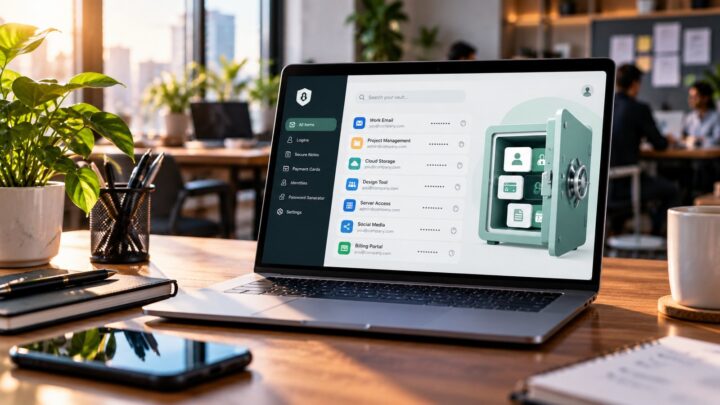
A password manager with shared vaults makes this far easier, because you can see exactly which logins a person could view and remove them from the vault in one click.
Remove Them From Apps and Pages
Go through your list app by app: CRM, billing software, Canva team, project tools, the help desk, and your WordPress dashboard. On WordPress, don’t just delete the user; reassign their posts to another author when asked, and follow our guide to a secure WordPress login while you’re there.
For Facebook, Instagram and ad accounts, remove them from Meta Business Suite rather than hoping nobody remembers the password. Do the same in Google Ads, Google Analytics and your Google Business Profile managers.
Close the Money Doors
Remove them as a user from net banking, payment gateways and accounting software. Cancel or block any company card in their name, and check that no UPI app on their phone is linked to a business account. Fraudsters love a messy exit, so stay alert to the tricks in our guide to UPI payment scams.
Collect Devices and Remove Them From Groups
Take back the laptop, phone, SIM, ID card and keys. If they used a personal phone for work, ask them to log out of business apps in front of you and remove the work account from WhatsApp, Gmail and Drive. Finally, remove them from internal and client WhatsApp groups, and politely let key clients know who their new contact is.
Step 3: After They Leave, Tidy Up
The access is gone, but the job isn’t quite finished. The next week or two is about making sure nothing important disappears along with the person.
Move Their Files and Email to a New Owner
Before you delete any account, transfer what matters. In Google Workspace, you can move a departing user’s Drive files to a colleague when you delete them, and add their old email address as an alias on someone else’s account so client emails keep arriving. In Microsoft 365, converting the mailbox to a shared mailbox does a similar job.
An auto-reply on the old address helps too, something warm and simple like: “Thanks for your message. Priya has moved on from our team, and Rahul will be happy to help you at [email protected].” Clients appreciate not being left hanging.
Cancel Licences You No Longer Need
Suspended users in Google Workspace are still billed, and many apps charge per seat whether anyone logs in or not. Once the data is safe, delete the account or reassign the licence to the next hire. This small step can quietly save you thousands of rupees a year.
Do a Final Check
A week after the exit, run through the list once more. Look at each app’s user list, check recent logins where the app shows them, and confirm nobody unexpected is still an admin anywhere. You’ll almost always find one thing you missed, and it’s far better to find it now.
Close Out Pay and Paperwork
In India, settle the full and final payment on time. Under the new labour codes, final wages are generally due within two working days of the last day, so check the timeline with your accountant. Hand over the relieving letter, experience letter and Form 16, help with the PF transfer through their UAN, and pay gratuity if they’ve completed five years.
If they’re open to it, a short, friendly exit chat is worth its weight in gold. People leaving are often the most honest feedback you’ll ever get about how your business really runs.
Your Printable Offboarding Checklist
Copy this into a Google Sheet or print it, and tick it off for every person who leaves.
| When | Task | Done |
| Before last day | List every account, app and device they use | ☐ |
| Before last day | Handover notes and walkthrough with the new owner | ☐ |
| Before last day | Move accounts set up on personal email to a company email | ☐ |
| Last day | Suspend work email (Google Workspace, Microsoft 365, Zoho) | ☐ |
| Last day | Change shared passwords and move 2FA to a company number or app | ☐ |
| Last day | Remove from CRM, billing, Canva, project tools and WordPress | ☐ |
| Last day | Remove from Meta Business Suite, Google Ads and Business Profile | ☐ |
| Last day | Remove banking, payment gateway and card access | ☐ |
| Last day | Collect laptop, phone, SIM, ID card and keys | ☐ |
| Last day | Remove from internal and client WhatsApp groups | ☐ |
| After exit | Transfer Drive files and set up email alias or auto-reply | ☐ |
| After exit | Cancel or reassign unused licences | ☐ |
| After exit | Final check of every app’s user list | ☐ |
| After exit | Full and final pay, relieving letter, Form 16, PF transfer | ☐ |
Tools That Make Offboarding Easier
You don’t need expensive HR software to do this well. A few habits and tools go a long way:
- A password manager with shared vaults, such as Bitwarden or 1Password, so you can revoke someone’s access to every shared login at once instead of changing passwords one by one.
- One office suite as the front door. When people sign into apps with their Google Workspace or Microsoft account, suspending that one account cuts off a lot at once.
- A simple access register, just a spreadsheet listing who has access to what, updated whenever someone joins. It turns offboarding from guesswork into a ten-minute job.
- Automation for the repetitive bits. If you already automate onboarding, you can reverse the same flow when someone leaves. Our guide to automating client onboarding without coding and our Zapier vs Make comparison show how.
Common Mistakes to Avoid
- Forgetting the social media pages. A former employee posting from your brand account, even by accident, is a reputation headache.
- Leaving shared passwords unchanged because “they’d never do anything”. It’s rarely about trust. Their phone could be lost or hacked next year.
- Deleting accounts too quickly and losing years of client emails and files.
- Ignoring the personal phone. Work WhatsApp chats and Google Drive often live on a phone you don’t own.
- Doing it from memory. The checklist exists so that a busy day can’t make you skip a step.
Frequently Asked Questions
What is employee offboarding?
Offboarding is the process of formally ending someone’s time at your business: removing their access to systems, collecting company property, handing over their work, and settling their pay and paperwork. Think of it as onboarding in reverse.
When should I remove a leaving employee’s access?
For a normal, friendly exit, at the end of their last working day. For a sudden or difficult exit, remove access before or during the conversation, so there’s no window where accounts can be misused.
Should I delete or suspend their email account?
Suspend it first. Suspending stops sign-in but keeps their email and files, which gives you time to transfer what you need. Delete the account once the data is safe and you no longer want to pay for the licence.
Do I have to change passwords if the person left on good terms?
Yes. It isn’t about suspicion. Their phone, laptop or personal email could be compromised in the future, and any password they knew becomes a way into your business.
How do I offboard someone who used their personal phone for work?
Ask them to sign out of business apps in front of you, remove the work Google or Microsoft account, and leave your WhatsApp groups. If you use Google Workspace or Microsoft 365, you can also sign them out of all sessions remotely from the admin console.
Is an offboarding checklist needed for freelancers too?
Absolutely. Freelancers often get access to your website, social pages or Drive folders for a project. When the project ends, remove that access the same way you would for an employee.
The Final Word
Nobody starts a business dreaming about offboarding checklists. But the day someone leaves is one of the few moments when your data, your customers and your reputation are genuinely exposed, and a little structure turns that moment from a worry into a routine.
Keep a simple list of who has access to what, suspend before you delete, change the passwords even when you trust the person, and take ten minutes a week later to double-check. Do that, and every goodbye can be a warm one, with nothing left behind but good memories and a tidy handover.
And the next time someone joins, you’ll know exactly what to write down on day one.