Many small business owners think hackers only go after big companies. In reality, small businesses are easier targets: fewer protections, no IT team, and staff who handle money and customer data on everyday laptops and phones.
Verizon’s 2025 Data Breach Investigations Report found ransomware in 44% of the breaches it studied. At organisations without mature IT and security, which are often small businesses, ransomware was present in 88% of breaches. The good news is that most attacks use simple tricks: a reused password, an unpatched laptop, a convincing fake email. The basics stop most of them.
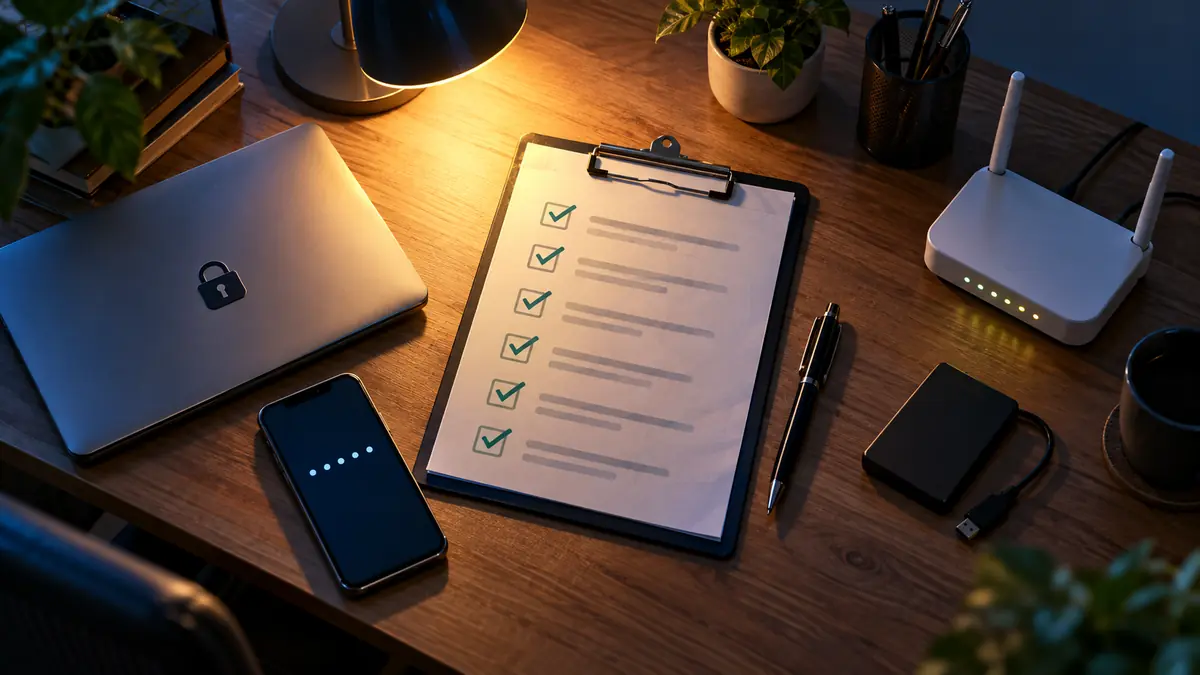
This checklist covers 20 things you can do this week, without an IT team or a big budget. Most take under 15 minutes. The list is split into four sections. Do one a day, and within four days your business will be much harder to break into.
How to use it: each item says what to do and why it matters. There’s a one-page summary at the end you can print or copy into a shared doc and tick off.
Day 1: Accounts and passwords
Stolen or guessed passwords are one of the most common ways attackers get in. Fix these first.
1. Turn on two-factor authentication for email first
Your email account is the master key: whoever controls it can reset the password of almost everything else. Turn on two-factor authentication (2FA) for every business email account today, then for banking, accounting, your website and social media. Use an authenticator app or passkey rather than SMS where you can. Our guide on how to set up two-factor authentication for business accounts has the steps for Google, Microsoft and others.
2. Start using a password manager
A password manager creates and remembers a long, unique password for every account, so one leaked password can’t unlock the rest. Business plans let you share logins with staff without sending passwords over chat. See our pick of the best password managers for small businesses.
3. Change any reused passwords
If you’ve used the same password on more than one site, change it now, starting with email, banking and anything that holds customer data. Most password managers flag reused and weak passwords for you.
4. Check whether your accounts are in a known breach
Enter your business email addresses at haveibeenpwned.com, a free service that shows whether they appeared in known data leaks. If they did, change those passwords and make sure 2FA is on.
5. Remove old accounts and access
List who has access to your email, website, social media, bank and cloud storage. Remove former staff, old freelancers and agencies you no longer work with. Every unused account is a door someone else might open. Make sure at least two trusted people have admin access to the important accounts, so you’re never locked out.
Day 2: Devices and software
Every laptop and phone that opens business email or files is part of your business’s security. Go through each one.
6. Turn on automatic updates everywhere
Updates close the security holes attackers use. Turn on automatic updates for Windows or macOS, phones, browsers and important apps. Then restart any device that’s been showing “update pending” for weeks. Replace devices that no longer get security updates.
7. Make sure every computer has antivirus running
Windows Security (built into Windows) is a solid free baseline if it’s switched on and up to date. Businesses with several laptops often prefer a business antivirus with one dashboard to see every device. Compare the options in our guide to the best antivirus for small business laptops.
8. Lock screens and encrypt laptops
Set every device to lock automatically after a few minutes and require a PIN, password or fingerprint to open. Turn on disk encryption, which keeps files unreadable if a laptop is lost or stolen: BitLocker or Device encryption on Windows, FileVault on Mac. Phones are encrypted automatically once they have a passcode.
9. Turn on Find My Device and remote wipe
Switch on Find My Device (Windows and Android) or Find My (Apple) for every business laptop and phone. If one is lost, you can locate, lock or erase it remotely before anyone reads your files.
10. Remove what you don’t use and limit admin rights
Uninstall old software and browser extensions nobody uses, because each one is something else that needs updates. Give staff standard user accounts for daily work, not administrator accounts. That way, if someone clicks a bad file, it can’t install itself across the whole computer.
Day 3: Email, data and backups
Email is where most scams start, and backups are what save you when something gets through.
11. Protect your domain with SPF, DKIM and DMARC
These three DNS records tell other email servers which senders are really you, so scammers find it much harder to send fake emails from your domain. Google Workspace and Microsoft 365 both guide you through setting them up, and most hosts or Cloudflare let you add them in a few minutes. If DNS is new to you, start with domain, hosting and DNS explained in plain English.
12. Agree a rule for payment requests
One of the costliest scams is the fake “please pay this invoice to our new bank account” email, sent from a hacked or look-alike address. Make a simple rule: any request to pay someone new, or to change bank details, must be confirmed by phone on a number you already have, never one from the email. Write it down and tell everyone who can make payments.
13. Spend 10 minutes on phishing with your team
Show your staff three or four real examples of phishing emails and what gave them away: an urgent tone, a strange sender address, a link that doesn’t match. Tell them it’s always fine to ask before clicking, and that reporting a mistake quickly matters more than avoiding blame. Our guide on how to spot phishing emails makes a good handout. Keep what to do if your business email gets hacked bookmarked, just in case.
14. Set up backups using the 3-2-1 rule, and test one
Keep 3 copies of important data, on 2 different types of storage, with 1 copy away from the office or offline. Cloud tools like Google Drive and OneDrive are convenient, but they can sync deleted or encrypted files, so add a separate backup too. Then actually restore one file to make sure it works. A backup you’ve never tested is only a hope. For your website, follow our guide to backing up and restoring a WordPress site.
15. Tidy up shared files and links
Open Google Drive, OneDrive or Dropbox and check what’s shared as “Anyone with the link”. Switch sensitive files (contracts, customer lists, invoices, ID documents) to named people only, and remove access for anyone who no longer needs it.
Day 4: Website, Wi-Fi, people and a plan
16. Update and protect your website
If you run WordPress, update the core, theme and plugins, and delete plugins and themes you don’t use. Use strong, unique admin passwords with 2FA, and check that your site loads over HTTPS (the padlock). A free Cloudflare account adds a layer of protection against attacks and bad bots.
17. Secure your office Wi-Fi router
Log in to the router and change the default admin password, which is often printed on the router itself. Use WPA3 security, or WPA2 if WPA3 isn’t available, with a long Wi-Fi password. Install any firmware updates. Put visitors and smart devices (TVs, cameras, speakers) on a separate guest network, so they never share a network with your work laptops.
18. Be careful on public Wi-Fi
Cafe, hotel and airport Wi-Fi is fine for browsing secure (HTTPS) sites, but avoid logging into banking or admin dashboards on it without protection. Use your phone’s hotspot instead, or a business VPN. Our guide answers whether small businesses need a VPN.
19. Write a one-page “if we get hacked” plan
When something goes wrong, people panic and lose time. A single page with these answers saves hours:
- Who decides: the person in charge, and a backup person.
- Who to call: your bank’s fraud line, your web host, your IT helper, your email provider’s support, and your cyber insurer if you have one.
- Where to report: in the US, the FBI’s IC3 (ic3.gov); in the UK, Action Fraud; in India, cybercrime.gov.in or the 1930 helpline.
- First steps: change passwords from a clean device, turn on 2FA, disconnect infected computers from the network, and contact the bank immediately if money was sent.
Print it and keep a copy off your computer, because you may not be able to open files during an attack.
20. Book a 30-minute monthly security check
Put a recurring reminder in your calendar for the first Monday of every month. Check for pending updates, look at who has access to your key accounts, confirm last month’s backups worked, and remove anything you no longer use. Security isn’t a one-time project. Small, regular checks keep these 20 fixes working.
Your one-page checklist
Copy this into a doc or print it, and tick off each item.
| # | Task | Done |
| 1 | Two-factor authentication on email, then bank, website and social | ☐ |
| 2 | Password manager set up for the team | ☐ |
| 3 | Reused passwords changed | ☐ |
| 4 | Business emails checked at haveibeenpwned.com | ☐ |
| 5 | Old accounts and access removed; two admins on key accounts | ☐ |
| 6 | Automatic updates on all devices and browsers | ☐ |
| 7 | Antivirus running on every computer | ☐ |
| 8 | Screen locks and disk encryption on | ☐ |
| 9 | Find My Device and remote wipe on | ☐ |
| 10 | Unused software removed; staff use standard accounts | ☐ |
| 11 | SPF, DKIM and DMARC set up for your domain | ☐ |
| 12 | Phone check rule for new payees and bank changes | ☐ |
| 13 | 10-minute phishing chat with the team | ☐ |
| 14 | 3-2-1 backups set up and one restore tested | ☐ |
| 15 | Shared file links reviewed | ☐ |
| 16 | Website updated, with 2FA and HTTPS | ☐ |
| 17 | Router password changed, WPA3/WPA2, guest network | ☐ |
| 18 | Public Wi-Fi rule: hotspot or VPN | ☐ |
| 19 | One-page incident plan printed | ☐ |
| 20 | Monthly security check in the calendar | ☐ |
Related guides: Small Business Cybersecurity: The Complete Guide
FAQ
What are the most important cybersecurity steps for a small business?
If you only do three things, do these: turn on two-factor authentication for email and banking, keep every device updated automatically, and keep tested backups with one copy offline. Those three stop or recover from most common attacks.
How much does basic cybersecurity cost a small business?
Much of this checklist is free: two-factor authentication, automatic updates, Windows Security, disk encryption, Find My Device, router settings and the incident plan. The main costs are a password manager and a backup service, which usually cost a few dollars per user each month.
Do I need an IT company to do this?
No. Every item here can be done by a non-technical owner or office manager. Bring in help if you manage many devices, handle sensitive data like health or payment records, or if something already looks wrong.
Is antivirus enough to protect my business?
No. Antivirus catches known malware on a device, but it doesn’t stop someone logging in with a stolen password or tricking staff into paying a fake invoice. That’s why this checklist combines antivirus with 2FA, updates, backups and a payment check rule.
How often should I review this checklist?
Do the full list once, then a 30-minute check every month (item 20), and a full review once a year or whenever you hire staff, change providers or buy new devices.
Final word
You don’t need a big budget or an IT department to protect a small business. Most attacks rely on simple gaps: a reused password, a missed update, an unchecked payment request, a backup nobody tested. Close those gaps with the 20 items above, starting with two-factor authentication on email today.
Print the one-page checklist, work through it over the next four days, and put the monthly check in your calendar. That small routine puts your business ahead of most others its size.