A passkey is a password replacement that you unlock with your fingerprint, face or device PIN. There’s nothing to remember, nothing to type and nothing a scammer can steal with a fake login page. For most small businesses, the answer is yes: start using passkeys now on the accounts that support them, especially email and your password manager, while keeping a backup sign-in method.
Passwords are the weak point in most small business security. People reuse them, write them down and type them into convincing phishing pages. Passkeys fix all three problems at once, and the biggest tech companies are pushing hard to make them the default. Microsoft made all new personal Microsoft accounts passwordless by default in May 2025.
This guide explains what passkeys are, how they work, where you can use them today and how to switch your team without locking anyone out.
How passkeys work, in plain English
When you create a passkey for a website or app, your device makes a matching pair of digital keys:
- A public key goes to the website. It’s useless on its own, so it doesn’t matter if a hacker steals it from the company’s servers.
- A private key stays with you, locked inside your phone, computer or password manager. It never leaves your device and is never sent to the website.
When you sign in, the website sends a challenge. Your device asks you to confirm with your fingerprint, face or PIN, then uses the private key to answer the challenge. The website checks the answer with the public key, and you’re in.
Why scammers can’t steal a passkey
Three things make passkeys far safer than passwords:
- There’s nothing to type. A fake login page can’t trick you into handing over a passkey, because you never enter it anywhere.
- Each passkey is tied to one real website. A passkey made for google.com simply won’t work on a look-alike site such as g00gle-login.com. Your device refuses.
- Nothing useful is stored on the website’s servers. If a company is hacked, the attackers only get public keys, which can’t be used to sign in.
That’s why passkeys are described as phishing-resistant, which matters because phishing is the most common way small business accounts get taken over. See our guide on how to spot phishing emails.
Synced passkeys vs device-bound passkeys
- Synced passkeys are saved in Google Password Manager, iCloud Keychain or a password manager like 1Password or Bitwarden, and they sync across your devices. If you lose your phone, your passkeys aren’t lost. This is what most small teams should use.
- Device-bound passkeys live on one physical device, such as a hardware security key like a YubiKey. They’re the most secure option, and are a good fit for owner and admin accounts.
Passkeys vs passwords and two-factor codes
A password on its own is the weakest option. Adding a two-factor code, such as a text message or an authenticator app, is much better. Passkeys go a step further.
| Question | Password + two-factor code | Passkey |
| Something to remember? | Yes, a password | No |
| Can a fake login page steal it? | Yes, scammers can capture both the password and the code in real time | No, it only works on the real website |
| Can it be reused on other sites? | Passwords often are | No, each passkey is unique to one site |
| Leaked in a company data breach? | Passwords can be, if poorly stored | No, sites only store a useless public key |
| Speed of signing in | Type password, then wait for or type a code | One touch or glance |
| If you lose your phone | Recover with backup codes | Synced passkeys are on your other devices |
The key point: two-factor codes stop most attacks, but modern phishing kits can trick people into typing both their password and their code into a fake page. Passkeys close that gap, because there’s nothing for a fake page to collect.
If you haven’t set up two-factor authentication yet, do that first. It works on almost every service today. See our guide on how to set up two-factor authentication.
Where you can use passkeys today
Most of the tools a small business relies on already support passkeys.
| Service | Passkey support for business use |
| Google Workspace | Users can sign in with a passkey. Admins can let them skip the password entirely in the Admin console under Security → Authentication → Passwordless. |
| Microsoft 365 | Work accounts support passkeys through Microsoft Entra ID, often stored in the Microsoft Authenticator app. New personal Microsoft accounts are passwordless by default. |
| Apple devices | Passkeys are saved in iCloud Keychain and sync across iPhone, iPad and Mac. |
| Android and Chrome | Passkeys are saved in Google Password Manager and sync across signed-in devices. |
| Password managers | 1Password, Bitwarden, Dashlane and others can store and sync passkeys across every device and browser. |
| Everyday services | Many banks, payment services, social networks and business apps now offer passkey sign-in. Check each service’s security settings. |
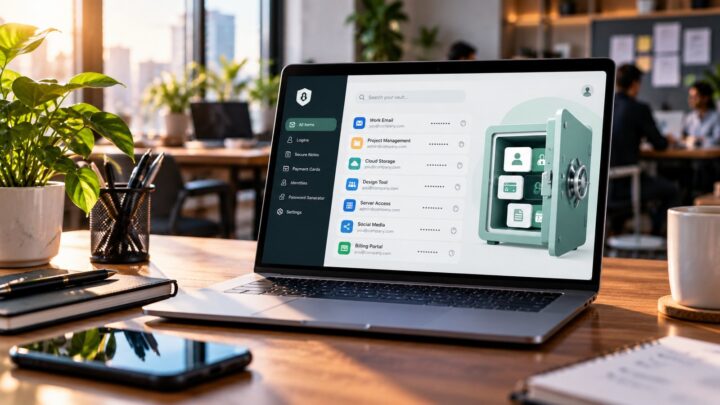
For small teams, a password manager is the easiest home for passkeys. It works across Windows, Mac, iPhone and Android, lets you share access safely, and keeps passkeys and passwords in one place. See our best password managers for small businesses.
Sources: Google Workspace: Allow users to skip passwords at sign-in and BleepingComputer: Microsoft makes all new accounts passwordless by default, checked October 2026.
Pros and cons for a small business
Why it’s worth switching
- Stops phishing. The most common way small business accounts get hacked simply doesn’t work against passkeys.
- Faster sign-in. A fingerprint or face scan beats typing a password and waiting for a code.
- No weak or reused passwords. Every passkey is unique and strong by design.
- Fewer lockouts and resets. Nobody forgets a passkey, so you spend less time on “I can’t log in” problems.
What to watch out for
- Not every service supports them yet. You’ll run passkeys and passwords side by side for a while.
- Shared logins are trickier. If several people use one account, store its passkey in a shared password manager vault rather than one person’s phone.
- Mixed devices need a plan. A passkey saved only in iCloud Keychain won’t be available on a Windows PC. A cross-platform password manager solves this.
- Recovery still matters. Keep backup codes or a second sign-in method for every important account, so a lost device never means a locked-out business.
- Staff need a short explanation. People are used to passwords. A five-minute walkthrough removes most of the confusion.
How to roll out passkeys in a small team
- Choose where passkeys will live. For a mixed Windows, Mac and phone team, use a business password manager. For an all-Apple or all-Google team, the built-in option can work.
- Start with the most important accounts. Email first, because it can reset everything else. Then your password manager, banking, domain registrar, hosting and website admin.
- Owners and admins go first. Set up passkeys on your own accounts, and consider a hardware security key for admin accounts.
- Turn it on for the team. In Google Workspace or Microsoft 365, enable passkey sign-in in the admin settings, then ask each person to add a passkey to their account.
- Keep a backup method. Make sure every account has backup codes or a second sign-in option stored safely.
- Show people how it works. Walk the team through one sign-in. Once they’ve used it, most people prefer it.
- Add more services over time. Each month, check the security settings of the other tools you use and switch on passkeys where available.
Related guides: Small Business Cybersecurity: The Complete Guide
FAQ
Are passkeys safer than passwords?
Yes. Passkeys can’t be guessed, reused or captured by fake login pages, and a website data breach doesn’t expose them. They’re also safer than passwords combined with text-message codes.
What happens if I lose my phone?
If you use synced passkeys in a password manager, iCloud Keychain or Google Password Manager, they’re still available on your other devices and on a new phone once you sign in. That’s why synced passkeys and backup recovery codes are recommended for small teams.
Do passkeys use my fingerprint? Can a website see it?
Your fingerprint or face is only used to unlock the passkey on your own device. It never leaves your device, and websites never receive it.
Do I still need two-factor authentication with passkeys?
A passkey already combines two factors: something you have (your device) and something you are or know (your fingerprint, face or PIN). For services that don’t support passkeys yet, keep two-factor authentication switched on.
Can a team share a passkey?
Yes, if it’s stored in a shared vault in a business password manager. Avoid saving shared-account passkeys on one person’s personal phone.
Will passwords disappear completely?
Not soon. Many services still need passwords, but the shift is clearly underway. Microsoft has said it aims to eventually remove password support as more people enroll passkeys.
Final word
Passkeys are the biggest improvement to everyday sign-in security in years. They’re faster than passwords and resistant to the phishing attacks that catch so many small businesses. You don’t need to switch everything at once.
Start this week with your email and password manager, keep backup codes safe, and add passkeys to other services as they support them. Within a few months, most of your team’s important accounts can be protected by a fingerprint instead of a password.