Phishing is the most common cybercrime reported to the FBI. Its Internet Crime Complaint Center received 191,561 phishing and spoofing complaints in 2025, more than any other type. Business email compromise, where scammers trick staff into paying fake invoices or sending money, cost victims over $3 billion that same year (FBI IC3 2025 report, via HIPAA Journal).
Small teams are easy targets. There’s usually no security department, people wear many hats, and one person often handles both email and payments. Attackers know a busy owner or assistant is more likely to click first and think later.
The good news: almost every phishing email leaves clues. This guide shows your team what to look for, how to check a suspicious email safely, and exactly what to do if someone clicks.
10 warning signs of a phishing email
One sign alone doesn’t prove an email is fake, but two or more should make you stop.
- Urgency or pressure. “Your account will be closed in 24 hours.” “Pay this today or we’ll cancel the service.” Scammers rush you so you don’t think.
- A sender address that’s slightly off. The display name says “Microsoft”, but the address is [email protected]. Always check the actual address, not just the name.
- A reply-to address that’s different from the sender. The email seems to come from your supplier, but replies go to a Gmail or unknown address.
- Links that don’t match. Hover over a link (or long-press on a phone) to see where it really goes. If the text says paypal.com but the link goes somewhere else, it’s fake.
- Unexpected attachments. Be very careful with ZIP files, HTML files, Office files asking you to “enable content”, and PDFs with a “view document” button.
- Requests to sign in. “Your mailbox is full, log in here.” Real services rarely ask you to sign in through an email link.
- Requests for money or gift cards. Any request to pay, change bank details or buy gift cards needs checking, especially if it seems to come from your boss.
- A generic greeting. “Dear customer” or “Dear user” from a company that knows your name.
- Something that feels off. An unusual time, an odd tone, a supplier who never emails like this. Trust that feeling.
- Too good to be true. Prizes, refunds you didn’t expect, or a “pending payment” waiting for you.
A note on spelling mistakes: poor grammar used to be the classic giveaway. With AI writing tools, many phishing emails are now perfectly written. Don’t assume an email is safe just because it reads well.
Common phishing scams small teams face
| Scam | How it works | Red flag |
| Fake invoice | A “supplier” sends an invoice or says their bank details have changed | Any change to payment details by email |
| CEO or boss fraud | A message “from the owner” asks someone to pay urgently or buy gift cards | Secrecy, urgency, unusual payment method |
| Fake login page | An email says your Microsoft 365, Google or bank account needs attention, and links to a copy of the login page | A sign-in link in an email |
| Shared document | “You’ve been sent a document” with a link to a fake Google Drive, Dropbox or DocuSign page | You weren’t expecting a document |
| Delivery notice | “Your parcel couldn’t be delivered, pay a small fee” | Small payment request, odd link |
| Fake account alert | “Unusual sign-in detected, verify now” | Pressure to act through the email’s link |
| Client impersonation | A scammer copies a real client’s email thread and adds a new payment request | A different sender address or reply-to in a familiar thread |
Fake invoices and boss fraud cause the biggest losses, because they go straight for your money. The simplest defence is a team rule: any new or changed payment details must be confirmed by phone, using a number you already have, never one from the email.
How to check a suspicious email safely
- Don’t click, download or reply. Leave the email open but untouched.
- Check the real sender address. Tap or click the sender’s name to see the full address. Look for misspellings, extra words or odd domains.
- Hover over links without clicking. On a computer, the real address appears at the bottom of the browser or email app. On a phone, press and hold the link to preview it.
- Go to the source directly. If the email says your account has a problem, open a new browser tab and type the website address yourself, or use the official app.
- Call to confirm. For payment or bank-detail requests, call the person or company using a number you already know.
- Ask a colleague. A second pair of eyes catches a lot. Make it normal on your team to say “Does this look right to you?”
- Report it. Use your email app’s “Report phishing” button, and tell whoever manages IT for your team.
What to do if someone clicks
Speed matters more than blame. Make sure your team knows they’ll be thanked for reporting quickly, not punished. Hidden mistakes cause the most damage.
If they clicked a link but entered nothing:
- Close the page.
- Run a full antivirus scan.
- Report it, so others can watch for the same email.
If they entered a password:
- Change that password immediately, from a trusted device, by typing the real website address.
- Change it anywhere else the same password was used.
- Turn on two-step verification if it isn’t already on.
- Check for strange activity, such as sent emails, new forwarding rules or unknown sign-ins.
If they opened an attachment or installed something:
- Disconnect the device from Wi-Fi or the network.
- Run a full antivirus scan, and ask for IT help if you have it.
- Change important passwords from a different, clean device.
If money was sent:
- Call your bank immediately and ask them to stop or recall the payment. The first few hours matter most.
- Report it to the police and your national cybercrime service: IC3 in the US, or the National Cybercrime Reporting Portal (helpline 1930) in India.
- Keep the email and any records as evidence.
How to protect your team
Training helps, but people will still make mistakes on a busy day. These tools and habits catch what people miss.
Tools
- Two-step verification on every account, especially email, banking and your website admin. Even if a password is stolen, the attacker can’t sign in without the second step. Authenticator apps or passkeys are safer than SMS codes.
- A password manager. It only fills in passwords on the real website, so it won’t autofill on a fake login page. That alone is a useful warning sign.
- Business email with strong filtering. Google Workspace and Microsoft 365 both block most phishing before it reaches the inbox. See our Google Workspace vs Microsoft 365
- Business antivirus with web protection, which blocks many known phishing sites. See our guide to the best antivirus for small business laptops.
- Email authentication for your own domain. Ask your email provider or web host to set up SPF, DKIM and DMARC. These make it much harder for scammers to send emails pretending to be your business.
Habits
- Make a payment rule: any new or changed bank details are confirmed by phone, every time.
- Run a 10-minute talk every few months showing real phishing emails your team has received.
- Make reporting easy and blame-free, so people speak up quickly.
- Limit who can approve payments, and use two people for large amounts where possible.
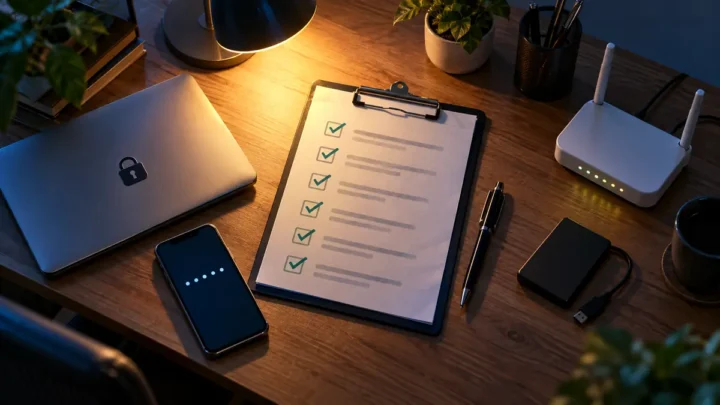
Team checklist: before you click
Print this or pin it in your team chat.
- ☐ Was I expecting this email?
- ☐ Does the sender’s actual address look right, not just the name?
- ☐ Does the link go where it says when I hover over it?
- ☐ Is it asking me to sign in, pay, or change bank details?
- ☐ Is it pushing me to act right now?
- ☐ If it’s about money, have I confirmed by phone using a number I already have?
- ☐ When in doubt, have I asked a colleague or reported it?
Related guides: Small Business Cybersecurity: The Complete Guide
FAQ
Can opening a phishing email infect my computer?
Usually not. Simply opening an email is generally safe with up-to-date email apps. The danger comes from clicking links, opening attachments or entering information. Still, don’t interact with it, and report it.
What’s the difference between phishing and spam?
Spam is unwanted bulk email, like ads. Phishing is designed to trick you into giving away passwords, money or access. Phishing is targeted and dangerous; spam is mostly annoying.
What is spear phishing?
Spear phishing targets a specific person, using details about them, such as their name, job, boss or suppliers. It’s more convincing than mass phishing, and it’s common against small businesses.
Can phishing come through WhatsApp or SMS?
Yes. Phishing by text message is called smishing, and by phone call it’s vishing. The same warning signs apply: urgency, unexpected requests and links you didn’t ask for.
Do AI tools make phishing harder to spot?
Yes. AI helps scammers write flawless, personalised emails and even fake voices. That’s why checking the sender, the link and the request matters more than spotting spelling mistakes.
Should I unsubscribe from a suspicious email?
No. The unsubscribe link in a phishing email can be malicious, and clicking it confirms your address is active. Mark it as phishing or spam instead.
Final word
Phishing works by catching people when they’re busy and trusting. Your best defence is a team that slows down for a few seconds: check the sender, hover over the link, and never change payment details without a phone call.
Add two-step verification, a password manager and good email filtering, and most phishing attempts will fail before they ever cost you anything. Share this guide with your team today, and make “Does this look right to you?” a normal question at work.